Applies to: P-AVN-X series, firmware 1.4.0 and later
Overview
From firmware 1.4.0, the 5-pin Phoenix RS-232 port on the rear panel of a P-AVN unit can be controlled remotely over the network. You open an SSH command line session to the unit, and anything you type in that session is sent out of the serial port.
This is useful for sending control commands to a connected display, projector, camera or other serial device without running a separate serial cable back to a control PC.
Before you start
You will need:
- The IP address of the P-AVN unit
- An SSH client (PuTTY, MobaXterm, Windows Terminal, macOS/Linux Terminal)
- The serial settings required by the connected device (baud rate, data bits, parity etc.)
Step 1: Set the serial parameters
- Log in to the P-AVN web interface
- Click Full Config in the navigation pane.
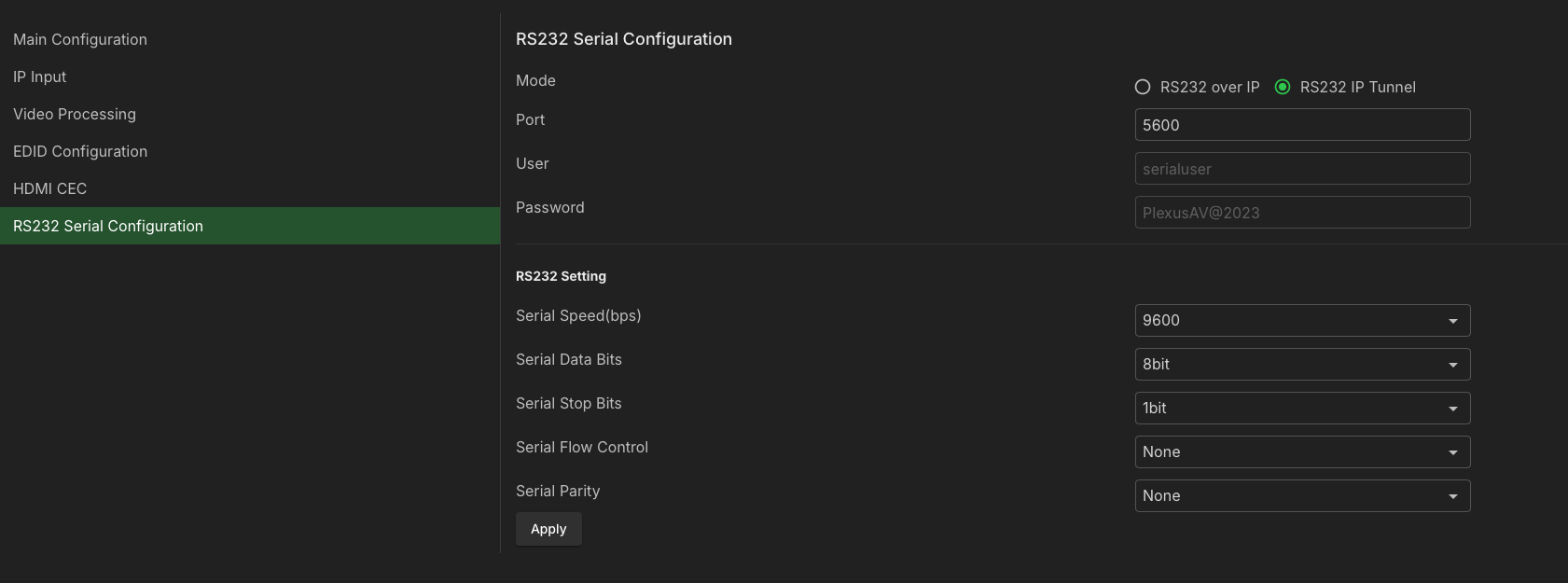
- Click RS232 Serial Configuration.
- Under RS232 Setting, set the parameters to match your connected device:
- Serial Speed (bps), e.g. 115200
- Data Bits, e.g. 8
- Stop Bits, e.g. 1
- Flow Control, e.g. None
- Parity, e.g. None
- Click Apply.
Step 2: Connect over SSH
The serial tunnel is always active on TCP port 5600. Connect with:
ssh serialuser@<device-ip> -p 5600When connected, you will see:
Serial port connected!Step 3: Send data
Type your data after the -> prompt and press Enter.
| To send | Type |
|---|---|
| ASCII text | hello |
| Hex bytes | \x81\x01\x06 |
Each sent message is confirmed with sent -> <your data>.
Press Ctrl+C to close the session.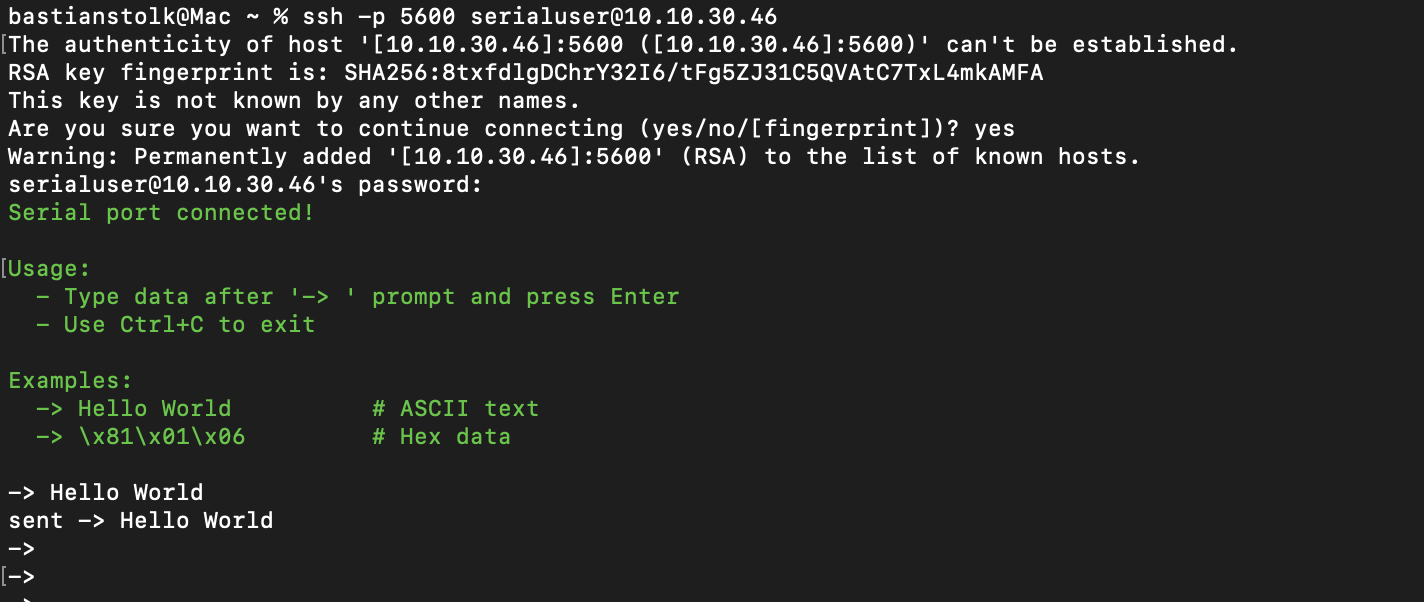
Important notes
The tunnel is always on. It does not need to be enabled in the web interface. The SSH service on port 5600 is available whenever the unit is running.
The Mode, User and Password fields are display only. The Mode radio button (RS232 over IP / RS232 IP Tunnel) and the User and Password fields on the RS-232 page are not saved. After a page refresh the Mode will always show “RS232 over IP”. This does not affect the tunnel. The login credentials are fixed and cannot be changed from this page.
“Serial over IP” on the Main Configuration page is a different setting. It only controls whether the RS-232 widget is shown. It does not enable or configure the SSH tunnel.
Port 5600 is SSH, not a raw TCP socket. Control systems that open a plain TCP connection (for example a standard Crestron TCP/IP client) will not work. The device will respond with SSH handshake data, and nothing will be passed to the serial port. Your control system must support SSH connections to use this feature.
Presets are not affected. Serial commands stored in presets are written directly to the serial port and work independently of the SSH tunnel.
Troubleshooting
| Symptom | Likely cause |
|---|---|
| Connection refused | Wrong port. Make sure you specify -p 5600. |
| Login fails | Use serialuser / PlexusAV@2023. |
| Control system receives random binary data | It is connecting with raw TCP instead of SSH. |
| Device does not respond to commands | Check baud rate, parity and wiring on the Phoenix connector. Check whether the device expects a line terminator (CR / LF) or a specific hex format. |
Was this article helpful?
That’s Great!
Thank you for your feedback
Sorry! We couldn't be helpful
Thank you for your feedback
Feedback sent
We appreciate your effort and will try to fix the article