P-AVN-X Devices host a very sleek web-interface or “ui”, where you can see Dashboard status of the input/output, make channel changes, configure, update, etc. By default, the P-AVN-X product will host both a secure HTTPS and HTTP style URL to access with a web browser.
The HTTPS:// style URL uses a “certificate” to secure the session in between browser and P-AVN-X

- HTTPS:// style web-ui is always available
- This may prompt the browser to show an “accept” or “proceed” dialog (this is normal)
If your browser shows this prompt, click advanced, then proceed/accept as needed to access the web-interface via HTTPS.
This is very common in any electronics with web-ui.
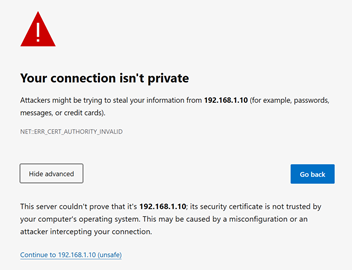
The P-AVN-X uses a valid certificate, but it is not dynamically verified with a 3rd party website over the internet. This is why the browser will notify the user. It is indeed an encrypted session even though browsers like chrome will show in red “not secure”.
The HTTP:// style URL does not require a certificate or prompt a security warning

- HTTP:// style web-ui can now be enabled or disabled
- Using HTTP:// method does not require a certificate and the browser won’t show the security prompts. Communication between the P-AVN-X and web-browser is an unsecured session, which is fine in many local/private network topologies.
Note: when disabling the HTTP:// access a reboot is required to fully enable
To change the HTTP:// enable/disable setting
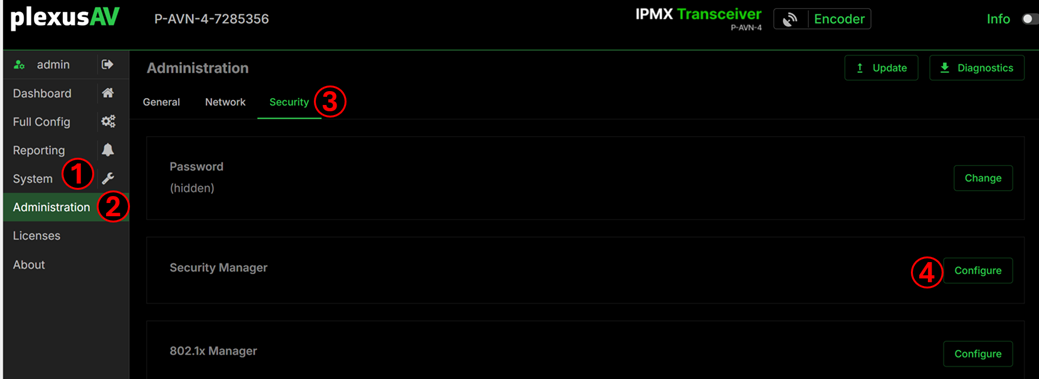
- Login to the P-AVN-X and click on System section in the Navigation Pane
- Click Administration, which is underneath the System section
- Click on the Security tab under Administration
- Click the Security Manager Configure button
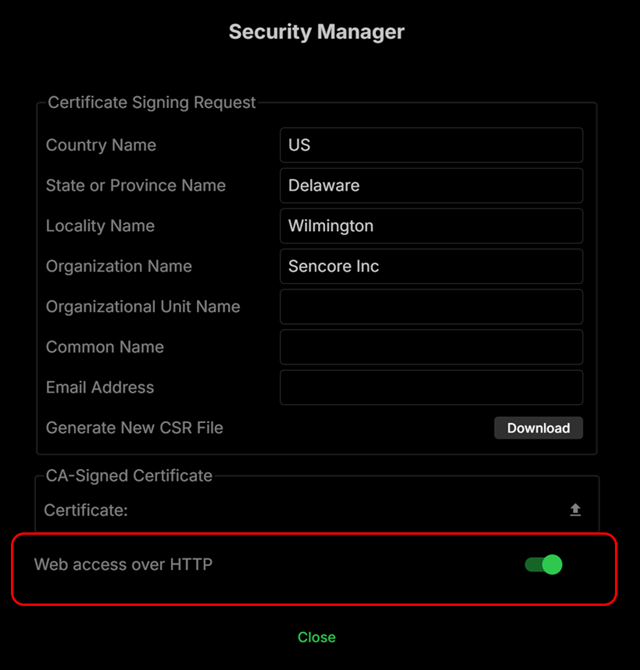
The toggle button will enable (switch on right = green) or disable (switch on left = gray) HTTP access
Note: When disabling access, be sure to reboot the unit
Was this article helpful?
That’s Great!
Thank you for your feedback
Sorry! We couldn't be helpful
Thank you for your feedback
Feedback sent
We appreciate your effort and will try to fix the article