Introduction
Streaming an IPMX signal directly to Youtube is possible using the Stream Conversion Gateway! This guide walks you through the relevant settings on both the AVN-4/2E and Stream Conversion Gateway to achieve this.
Step 1: Pre-requisites and notices
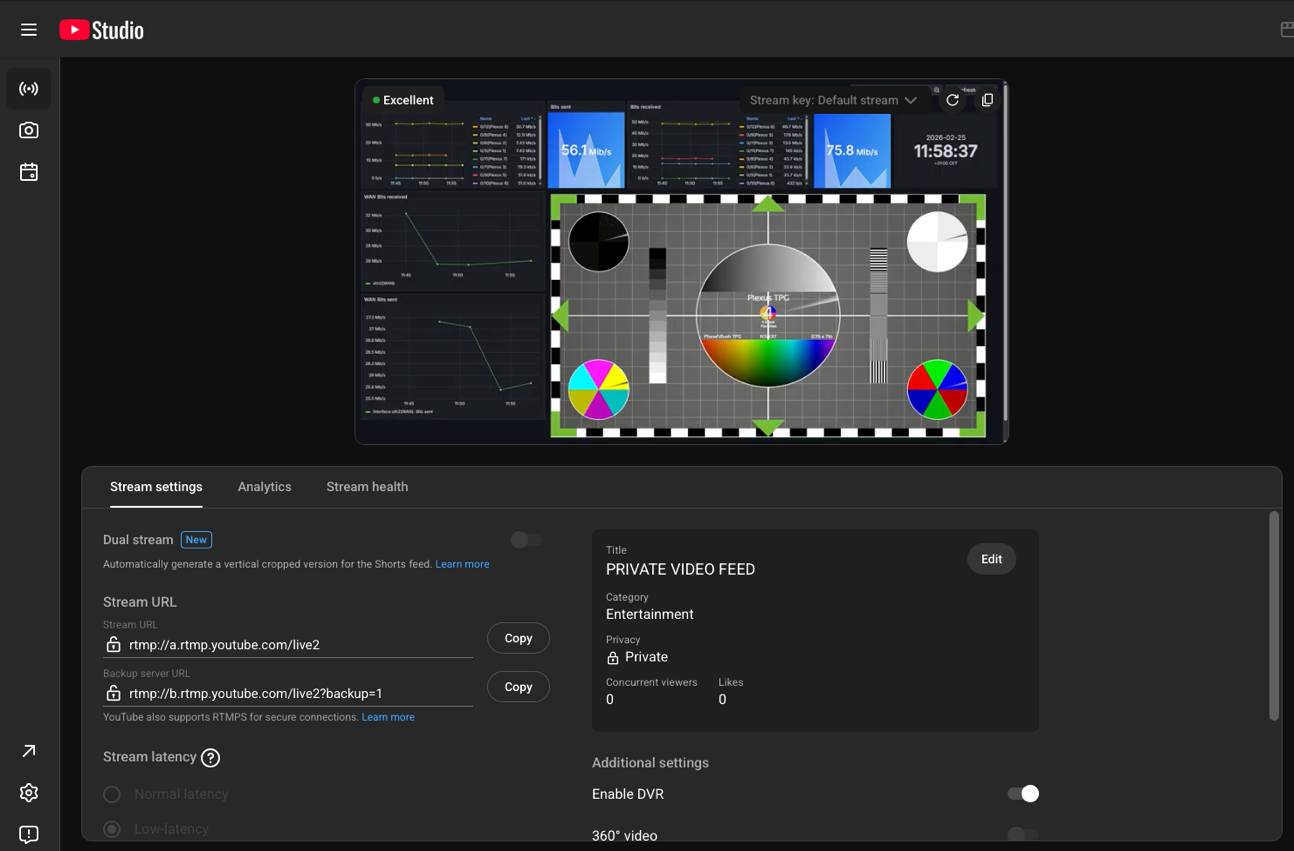
To stream on Youtube you will need to collect the Stream key from the Youtube Live Center, make a note of it ahead of time.
It’s important to note that Youtube has a strict set of requirements for the incoming video signal, we’ll match these on the encoding AVN-unit, this means that you cannot modify your High Compression Stream settings while streaming to Youtube as this will stop your stream.
Step 2: Configuring the AVN High Compression Stream
Open up the web interface of the AVN that will provide the input signal for the Youtube stream and click on the High Compression Stream (H.26x) panel’s edit button.
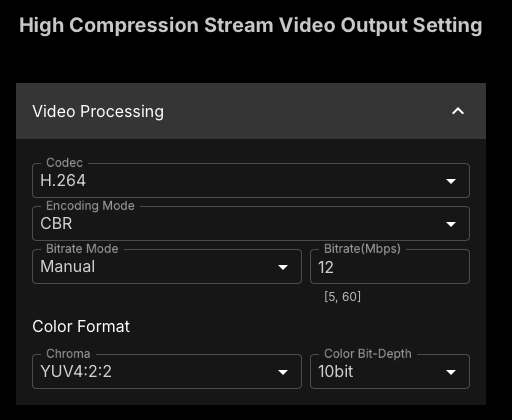
Let’s update the following values:
Codec
The Codec should be H.264 as Youtube’s H.265 integration is still experimental
Encoding Mode
Set Encoding Mode to CBR as Youtube (and RTMP in general) does not like the bursty behavior of VBR.
Bitrate Mode
For Bitrate Mode we’ll select Manual, and for the actual Bitrate we recommend somewhere between 8 and 12 Mbps, keep an eye on Youtube’s Stream Health panel in the Live Center as this will provide feedback whether your bitrate is too high or too low.
Color Format
For Color Format, we recommend going with a format close to the native format of your input, e.g., YUV4:2:2 8bit.
Step 3: Configuring the SCG Route
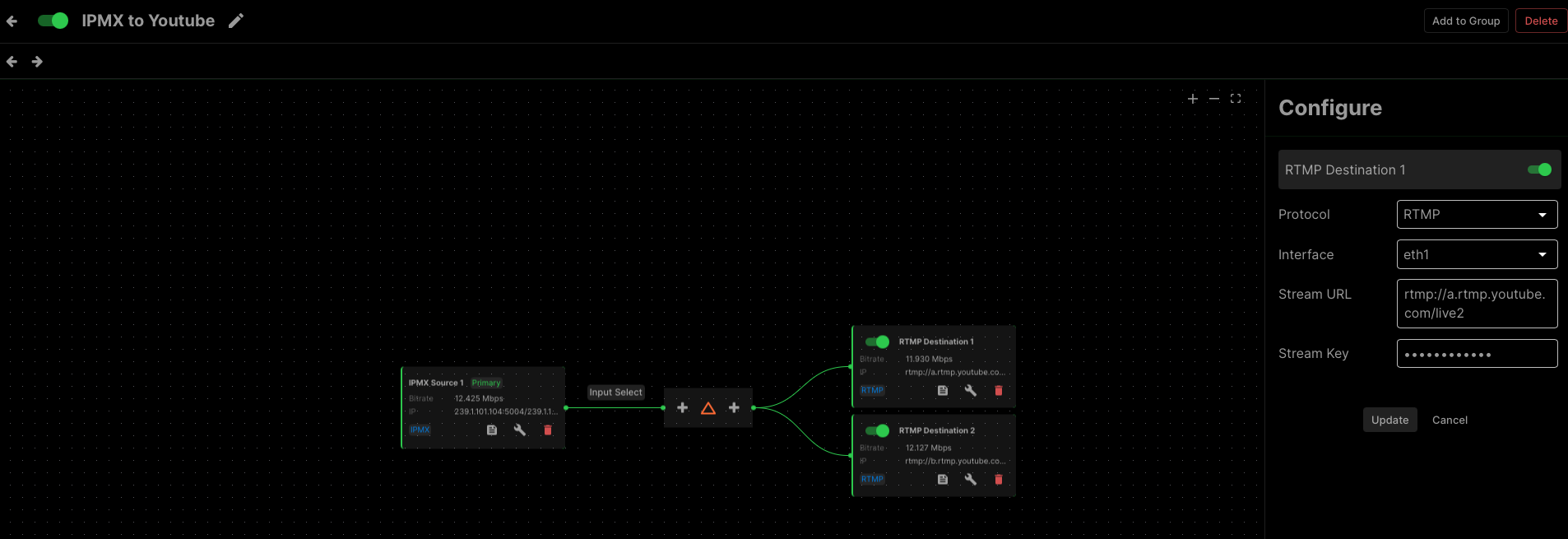
Navigate to your SCG’s web interface and create a new route, give it a recognizable name and let’s start by selecting an IPMX Source as Input. Select your just configured AVN unit.
We’ll create 2 destinations, one as primary and one as a backup, following Youtube’s best practices.
Create a new Destination and set the Protocol to “RTMP”
Select your WAN facing interface (e.g., eth1)
For Stream URL we’ll use the “Stream URL”-field from Youtube, which typically is rtmp://a.rtmp.youtube.com/live2
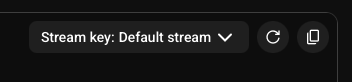
Now for Stream Key we’ll use your Stream Key that you’ve created in the Youtube Live Center, if you’ve lost it, click the copy button on the preview in the Live Center.
Press “Update” to apply.
Adding a backup stream
Youtube supports dual inputs, and as the SCG supports failover between destinations, let’s create a second destination, using almost identical settings as fort he primary, but instead using the backup “Stream URL” from the Live center, typically rtmp://b.rtmp.youtube.com/live2?backup=1
Was this article helpful?
That’s Great!
Thank you for your feedback
Sorry! We couldn't be helpful
Thank you for your feedback
Feedback sent
We appreciate your effort and will try to fix the article