Pre-Requisites:
Computer with Tera Term open source software installed (for command line) - feel free to use a different software but the screenshots in this procedure were made with Tera Term. This procedure assumes the user has experience with serial connections and command
USB cable to connect from computer to front USB-C port of CL-100. It can be a USB-A to USB-C conversion cable or USB-C to USB-C cable.
How to verify FW on a CL-100:
1. Power on CL-100 and change source to USB-C
2. Wire laptop to CL-100 USB-C input on front panel
3. Open TeraTerm Software and select the COM port assigned to the CL-100 and click OK to connect
*tera term serial com port selection*
*Windows Device Manager can be used to look up which COM port the CL-100 is assigned*
4. Click on Setup, and select Serial Port to configure settings
*under the serial port tab, configure these settings*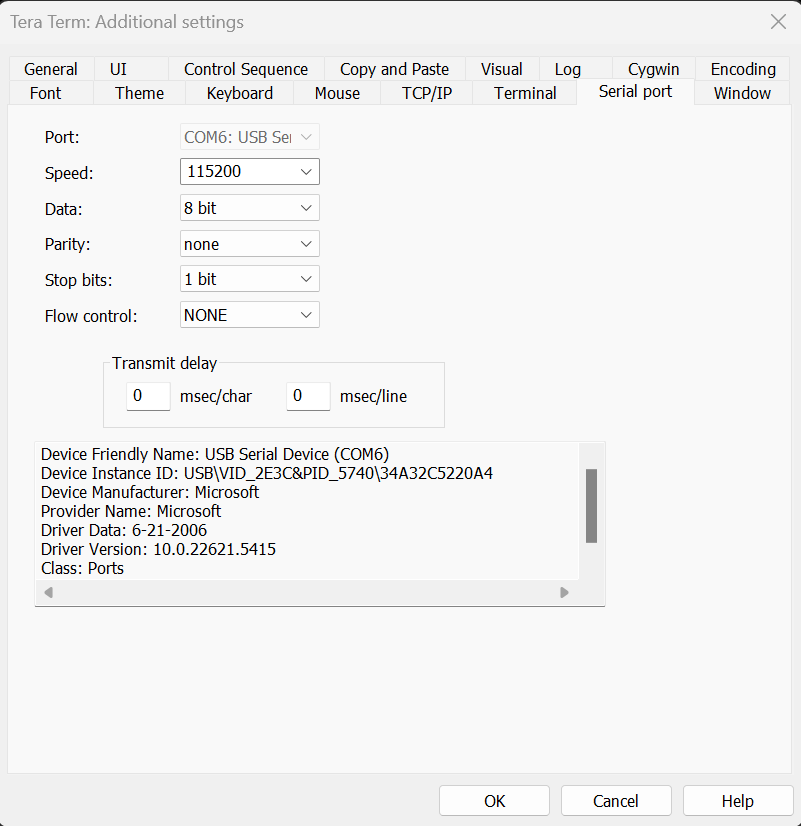
Speed: 115,200
Data: 8 bit
Parity: None
Stop Bits: 1 bit
Flow Control: NONE
*under the Terminal tab configure the receive and transmit settings*
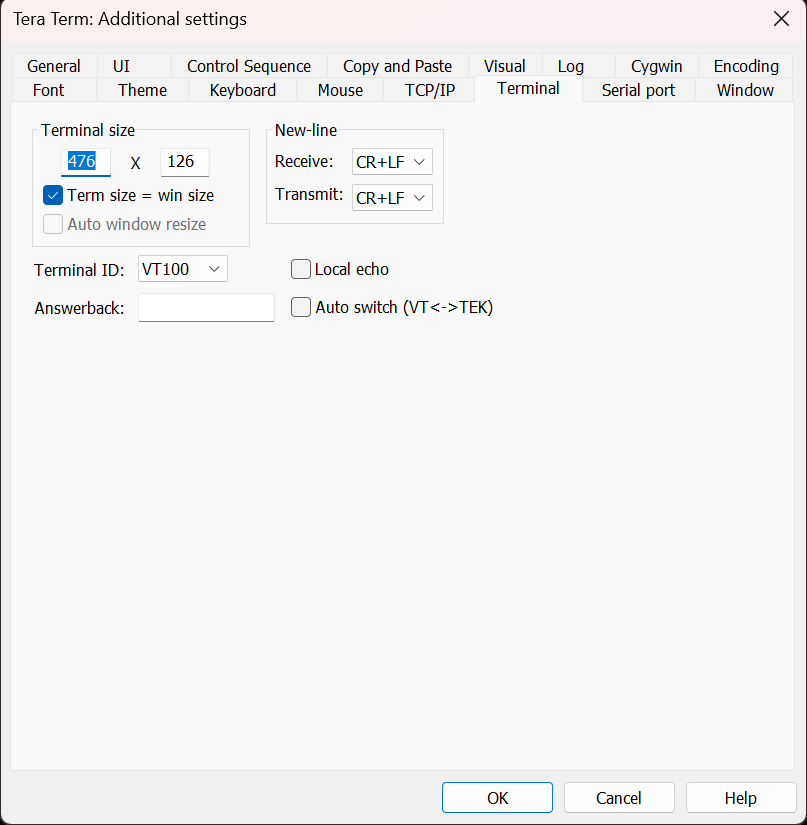
*New-Line Section (this must be changed from default settings)*
Receive: CR+LF
Transmit: CR+LF
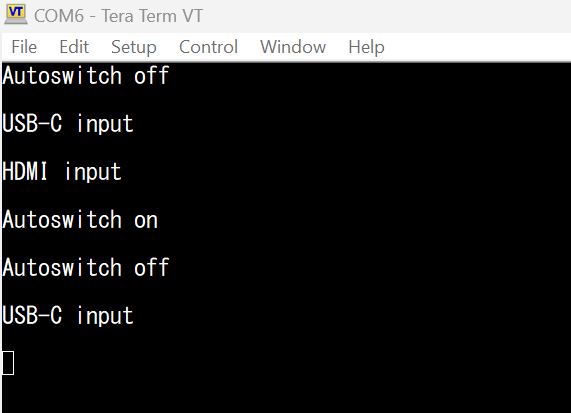
5. Press the SOURCE button on the front panel a few times to create activity and generate lines in the tera term serial connection window.
*example of serial output via TeraTerm when pressing the SOURCE button several times*
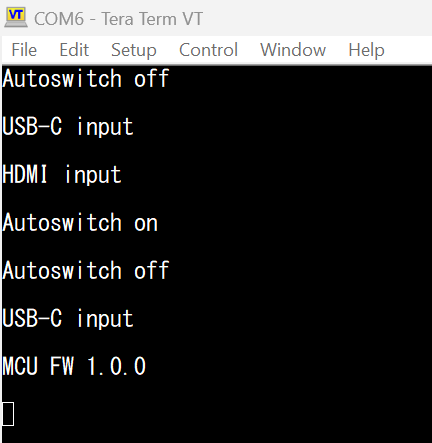
6. Type get version and press enter to view the current FW loaded.
NOTE: The serial window will NOT show the letters as they are typed, please be accurate
*example of output after get version command is sent*
Was this article helpful?
That’s Great!
Thank you for your feedback
Sorry! We couldn't be helpful
Thank you for your feedback
Feedback sent
We appreciate your effort and will try to fix the article